

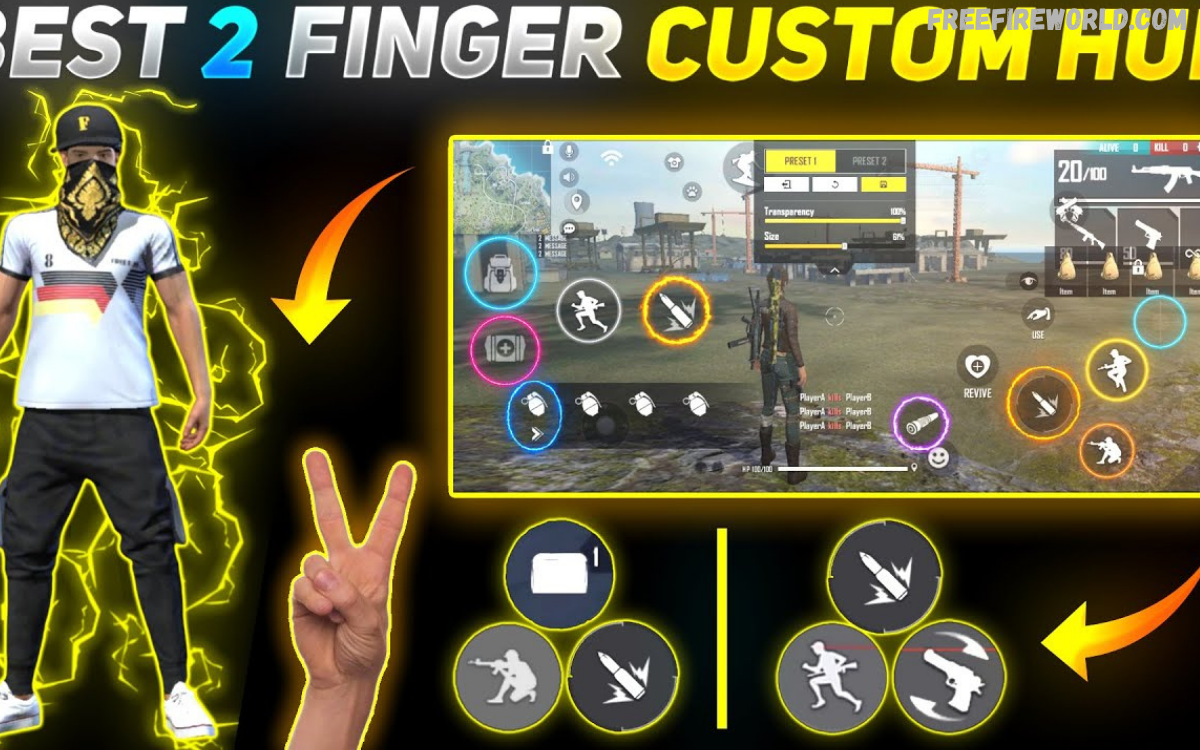
FF Custom HUD refers to the customizable heads-up display in Free Fire, allowing players to adjust button positions, sizes, transparency, and control layouts. A well-organized HUD helps players access essential controls comfortably during intense matches.
The right FF Custom HUD setup can make movement, aiming, jumping, crouching, reloading, and weapon switching feel more natural. Every player has different preferences, so one layout rarely works perfectly for everyone.
What Is FF Custom HUD?
FF Custom HUD lets Free Fire players customize the on-screen control interface. HUD stands for Heads-Up Display and includes the buttons and visual controls used during gameplay. These controls may include the fire button, joystick, jump button, crouch button, prone button, scope button, grenade button, and weapon selection area.
The main purpose of FF Custom HUD is to create a comfortable control arrangement that matches individual playing habits. Players can move buttons to convenient positions, adjust their sizes, and change transparency where supported. A personalized layout can reduce unnecessary finger movement and make important actions easier to perform during fast-paced encounters.
Importance of FF Custom HUD Settings
A suitable FF Custom HUD layout helps players manage multiple actions without constantly shifting their fingers across the screen. During close-range battles, quick access to firing, jumping, crouching, and movement controls can make gameplay feel more responsive. Comfortable positioning also helps players maintain consistent control during longer gaming sessions.
HUD customization does not automatically improve accuracy or guarantee victories. Instead, it creates a control environment that supports practice, timing, and coordination. Players should focus on comfort, accessibility, and consistency rather than copying professional layouts without considering their own device and hand placement.
Best FF Custom HUD Layout for Beginners
Beginners should start with a simple FF Custom HUD layout featuring clearly separated movement, firing, aiming, and action buttons. Keep frequently used controls within comfortable finger reach and avoid placing important buttons too close together.
Start with the default layout, then make small adjustments after several matches. Increase the size of buttons that are difficult to locate, and move controls that cause accidental touches. Testing one change at a time helps beginners identify useful improvements and build familiarity with their customized interface.
FF Custom HUD for Two-Finger Players
A two-finger HUD suits players who prefer simple controls with both thumbs. One thumb typically controls movement, while the other handles aiming, firing, and other actions. This setup can be comfortable for casual players and beginners who want to learn movement and combat fundamentals without complex finger techniques.
When designing a two-finger FF Custom HUD, place the joystick in the lower-left area and frequently used combat buttons in the lower-right area. Keep essential controls accessible without covering important visual information. Experiment with button size and spacing to find an arrangement that supports comfortable movement and accurate aiming.
FF Custom HUD for Three-Finger Players
A three-finger HUD introduces an additional finger for faster access to selected actions. Some players use their index finger to fire while their thumbs control movement and aim. This setup can make certain action combinations easier, especially when players need to move, aim, and shoot quickly.
For a three-finger FF Custom HUD, place the fire button where the additional finger can reach it comfortably. Keep the joystick and aiming area accessible to both thumbs, and avoid positioning the fire button where it interferes with other controls. Practice gradually until the layout feels natural during ordinary matches.
FF Custom HUD for Four-Finger Players
A four-finger HUD lets players spread movement, aiming, firing, jumping, and other actions across more fingers. This setup can support simultaneous actions without requiring one thumb to manage every important button. However, it takes practice and may feel less comfortable than a two-finger layout at first.
Players experimenting with a four-finger FF Custom HUD should prioritize accessibility over complexity. Place each frequently used button within comfortable reach, and leave enough space between neighboring controls. Start with a few essential actions, then adjust the layout as coordination improves through regular practice.
Best Fire Button Size for FF Custom HUD
Fire button size affects how easily players can locate and press the shooting control. A button that feels too small can be hard to tap consistently, while an excessively large button can block visibility or cause accidental touches. The best size depends on screen dimensions, finger placement, and personal preference.
When adjusting your FF Custom HUD, test different fire button sizes in the training area before entering competitive matches. Choose a size that lets you tap comfortably without covering enemies or important visual indicators.
Best Joystick Position and Size
The joystick controls character movement, making its placement important for comfortable navigation. A well-positioned joystick lets players move forward, backward, and sideways without constantly adjusting their thumb. Its size should provide sufficient control while leaving enough room for nearby buttons and other interface elements.
In your FF Custom HUD, place the joystick near the lower-left side if that arrangement suits your grip. Adjust its size until directional movement feels comfortable and predictable. Test movement while running, changing direction, and navigating obstacles to ensure the control remains accessible during different gameplay situations.
FF Custom HUD for Drag Headshots
Some Free Fire players customize their HUD to support drag-headshot techniques. This method involves moving the aiming control while firing to adjust the crosshair toward an opponent’s head.
For a drag-headshot-oriented FF Custom HUD, make sure the fire button and aiming area leave enough room for controlled finger movement. Avoid placing nearby buttons where they interrupt your usual motion. Practice with different weapons in the training area, then adjust the layout to match your aiming habits.
FF Custom HUD for Close-Range Battles
Close-range encounters often require quick movement, rapid aiming adjustments, jumping, crouching, and firing. A good HUD keeps these controls accessible while letting players stay aware of nearby opponents. The goal is to reduce unnecessary finger travel and make common action combinations comfortable to perform.
Customize your FF Custom HUD around the actions you use most frequently during close-range combat. Keep movement and firing easy to control while leaving enough screen space to track opponents. Test the arrangement in casual matches before making further changes, and avoid adding unnecessary complexity to your interface.
FF Custom HUD for Long-Range Combat
Long-range combat requires careful aiming, controlled movement, and comfortable access to scope controls. Players often benefit from a layout that keeps aiming adjustments smooth while letting them quickly access firing and weapon switching. Clear visibility is especially important for spotting distant opponents and monitoring the surroundings.
For a long-range FF Custom HUD, position the scope and fire controls where you can reach them without losing comfortable aiming movement. Avoid covering distant targets with oversized buttons. Test your preferred layout with different weapons and scopes, then maintain the arrangement long enough to evaluate its consistency.
Best Transparency Settings for FF Custom HUD
Button transparency controls how visible interface elements appear against the game environment. Higher transparency can reduce visual obstruction, while lower transparency makes buttons easier to identify quickly. The ideal setting balances button visibility with a clear view of opponents, obstacles, and important surroundings.
When configuring FF Custom HUD transparency, avoid making essential buttons so transparent that you struggle to locate them. Test your settings in different environments, including bright outdoor areas and darker locations. Adjust individual controls where supported, and keep frequently used buttons easy to recognize in demanding situations.
How to Customize FF Custom HUD
Customizing your HUD is straightforward when you understand the available controls. Open Free Fire, go to Settings, and find the Controls or HUD customization section. Depending on the current game version, you may find options to select a layout, move buttons, resize controls, and adjust transparency.
After opening the FF Custom HUD editor, select a button and move it to your preferred position. Adjust its size and transparency where available, then review the entire screen for overlapping controls. Save or apply your changes using the options displayed in your version of the game, and test the layout before making additional adjustments.
How to Test Your FF Custom HUD
Testing is essential because a layout that looks comfortable in the editor may feel different during actual gameplay. The training area lets you check movement, aiming, shooting, jumping, crouching, and weapon switching without immediately entering a competitive match. This process helps reveal inconvenient button positions.
During testing, observe whether you can reach important controls naturally and perform common actions without accidental presses. If a button repeatedly causes problems, move it or adjust its size. Make small changes, repeat the same actions, and keep settings that genuinely improve comfort and consistency.
FF Custom HUD Settings for Low-End Phones
Players using entry-level phones may prefer a simple HUD that preserves visibility and avoids unnecessary interface clutter. Screen size, touch responsiveness, performance, and available display space can all influence the overall experience. A practical layout can make controls easier to manage, although it cannot eliminate hardware limitations or performance issues.
For a low-end device, prioritize essential buttons and avoid unnecessarily large controls that cover important gameplay areas. Choose positions that work comfortably with your phone’s display dimensions.
Read Also: Discover How To Stand Out In Free Fire With Free Diamonds
FF Custom HUD Settings for Large Screens
Large-screen phones and tablets offer more room to arrange interface elements. However, buttons placed too far apart can require excessive finger movement, especially with a two-thumb setup. The best layout uses the available space efficiently without making important actions difficult to reach.
When creating an FF Custom HUD for a larger screen, adjust button sizes and positions according to your normal grip. Avoid simply spreading every control across the display. Test the distance between the joystick, fire button, scope, and other essential controls to keep them within reach and clearly visible.
Common FF Custom HUD Mistakes
One common mistake is copying another player’s layout without considering differences in hand size, screen dimensions, and playing style. A professional player’s configuration may suit their particular grip but feel awkward for someone else. Another mistake is changing multiple settings after every match, which makes it hard to identify which adjustments are genuinely useful.
Players should also avoid overcrowding the screen with oversized buttons or placing frequently used controls too close together. An effective FF Custom HUD should remain organized and easy to understand. Focus on comfortable positioning, reliable access, and gradual improvements instead of constantly searching for a supposedly perfect configuration.
FF Custom HUD and Sensitivity Settings
HUD and sensitivity settings work together but serve different purposes. HUD customization determines the position, size, and visibility of controls, while sensitivity influences how the camera or aiming movement responds to touch. Both settings affect aiming comfort, but neither guarantees accurate shots.
When adjusting FF Custom HUD settings, avoid changing sensitivity at the same time unless necessary. Test the layout first, then experiment with sensitivity separately if aiming still feels uncomfortable. This approach makes it easier to identify the source of a problem and establish a consistent control configuration.
FF Custom HUD for Battle Royale Mode
Battle Royale matches involve exploration, looting, movement, weapon management, and encounters across different distances. A useful HUD should provide convenient access to movement, firing, aiming, healing, grenades, and weapon selection. Keeping these controls organized helps players manage different situations without unnecessary confusion.
For Battle Royale, prioritize frequently used actions and keep important controls visible during exploration and combat. Position healing and utility buttons where they can be accessed comfortably when needed. Test your FF Custom HUD in regular matches to see whether it supports your preferred approach to survival and combat.
FF Custom HUD for Clash Squad Mode
Clash Squad focuses on shorter rounds and frequent combat encounters, so accessible controls matter. Players must switch weapons, manage available equipment, move around cover, and respond quickly to opponents. A clean HUD can make these repeated actions easier to perform consistently throughout a match.
Customize your FF Custom HUD for Clash Squad by prioritizing movement, firing, aiming, jumping, crouching, and weapon switching. Keep frequently used controls accessible without overcrowding the screen. Practice the same action combinations over several rounds to see whether your layout supports comfortable movement and reliable combat control.
How to Save and Maintain Your HUD Layout
Once you find a comfortable configuration, avoid changing it unnecessarily. Repeated adjustments can interrupt muscle memory, making familiar actions feel inconsistent. If your game version supports multiple HUD presets or layout saving, use the available options to preserve useful configurations and switch between them when appropriate.
Review your FF Custom HUD whenever you change devices, screen orientation, or grip style. A layout that works well on one phone may not transfer perfectly to another. Record important settings if helpful, and make deliberate changes only when you identify a specific problem that needs improvement.
Is FF Custom HUD Safe to Customize?
Using the official in-game HUD editor is the recommended way to personalize Free Fire controls. It lets players adjust supported interface options without installing extra tools or modifying game files. Standard customization helps players create a preferred layout while keeping their settings within the game’s intended features.
Avoid third-party applications that promise automatic headshots, unauthorized control modifications, or unfair gameplay advantages. Such tools may create account security risks or violate game rules. For a reliable FF Custom HUD experience, use the official settings menu and check the game’s current support information if you run into customization issues.
Best Tips for Improving FF Custom HUD
Start with a comfortable layout, prioritize essential controls, and make gradual changes based on actual gameplay. Keep the joystick, fire button, aiming controls, and key action buttons easy to reach. Use the training area to practice common movements and test whether your chosen positions support consistent control.
Give each configuration enough time before deciding whether it works well. Don’t copy settings just because a popular player uses them, and remember that practice still matters. The best FF Custom HUD suits your device, hand placement, preferred mode, and individual gameplay habits.
Frequently Asked Questions
What Is the Best FF Custom HUD?
The best FF Custom HUD is a layout that provides comfortable access to movement, aiming, firing, and other essential actions. No single configuration works equally well for every player. Choose button positions and sizes based on your device, preferred finger arrangement, and comfort.
Can FF Custom HUD Improve Gameplay?
A well-organized HUD can make controls easier to reach and reduce unnecessary finger movement. However, it won’t automatically improve accuracy or guarantee wins. Regular practice, game knowledge, aiming technique, and decision-making remain key to consistent gameplay.
Which FF Custom HUD Is Best for Beginners?
A simple two-finger layout is a reasonable starting point for beginners. Keep the joystick on the left and essential combat controls on the right, adjusting their positions to suit your grip. Once the controls feel familiar, experiment with small changes that improve comfort and accessibility.
Can I Copy a Professional Player’s FF Custom HUD?
You can use a professional player’s layout as inspiration if the available settings match your game version. However, differences in screen size, finger placement, and personal preference may affect comfort. Treat copied settings as a starting point, then customize them to suit your playing style.
How Often Should I Change FF Custom HUD Settings?
Change your HUD when you notice a specific problem, such as hard-to-reach buttons or frequent accidental presses. Avoid making constant adjustments without testing the results. Consistent settings give you time to develop familiarity and evaluate whether a particular change provides a practical benefit.
Does FF Custom HUD Guarantee Headshots?
No, FF Custom HUD does not guarantee headshots. Button placement may make aiming and firing more comfortable, but accuracy depends on several factors, including aim control, timing, weapon behavior, and practice. Use the training area to develop consistent aiming habits with your preferred controls.
Conclusion
FF Custom HUD customization helps Free Fire players build a control layout suited to their devices, preferred finger arrangements, and gameplay habits. Adjusting button size, position, and transparency can improve accessibility while keeping essential gameplay information visible.
For best results, start with a simple setup, test it during training, and improve gradually based on experience. Keep settings consistent while practicing, and use the official in-game editor to customize.
