

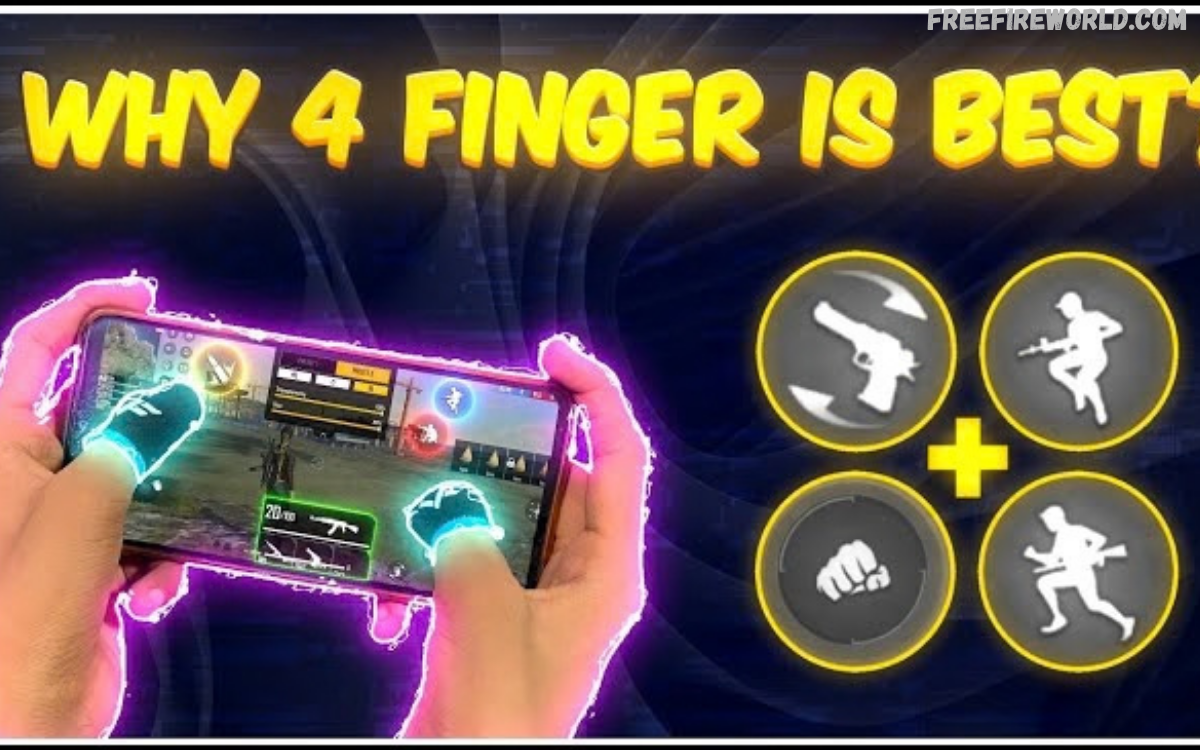
Free Fire four-finger settings are a popular control layout for players who want faster movement, shooting, aiming, jumping, crouching, and weapon switching. This setup uses four fingers across the screen, letting you perform multiple actions at once.
A properly arranged four-finger HUD can improve reaction speed and make complex combat situations easier to handle. Players can customize button positions, sizes, transparency, and sensitivity according to their device, gameplay style, and comfort.
What Is Free Fire Four Finger Setting?
Free Fire Four-Finger Setting refers to a custom control configuration where four fingers control different functions during gameplay. Commonly, the left thumb controls movement while the right thumb handles aiming, with index fingers managing shooting and additional actions.
This arrangement creates a more flexible control system compared with a traditional two-thumb setup. Players can perform actions such as moving, aiming, shooting, jumping, and crouching with less need to move one finger between multiple buttons.
Why Do You Use a Four Finger Control Layout?
A four-finger layout can provide quicker access to important controls during close-range and mid-range fights. Separate fingers can manage shooting, movement, aiming, and utility actions, reducing unnecessary hand movement during intense moments.
The setup can also make advanced movement combinations easier to perform. Players may find it more convenient to combine jump, crouch, fire, and aim actions when the required buttons remain within comfortable finger positions.
Best Free Fire Four Finger Setting Layout
A practical four-finger layout usually places the movement joystick on the lower-left side for the left thumb. The left index finger can control the primary fire button, while the right thumb manages camera movement and aiming.
The right index finger can operate jump, crouch, prone, weapon switching, or other frequently used controls. Keep button placement comfortable rather than copying another player’s HUD exactly, since hand size and screen dimensions differ.
Recommended Four Finger HUD Arrangement
Start by placing the movement joystick in its normal lower-left position. Keep the primary fire button in the upper-left so your left index finger can reach it without interfering with movement.
Place the aim, scope, and camera-related controls around the right side of the display. Keep the jump and crouch buttons close enough for quick access, while leaving enough space for accurate camera movement.
Four Finger Setting for Close Range Combat
Close-range battles require rapid reactions because opponents can change direction within seconds. A four-finger layout keeps movement, firing, jumping, and camera control available at the same time during aggressive encounters.
Position the fire and movement controls so fingers don’t collide during fast movements. A comfortable HUD can make repeated actions feel more consistent and reduce unnecessary finger travel across the screen.
Four Finger Setting for Long Range Combat
Long-range gameplay places greater importance on controlled aiming and stable camera movement. Keep the scope and fire controls positioned where the index fingers can reach them without disturbing the right thumb’s camera control.
Avoid placing too many buttons around the aiming area. A clean screen makes targets easier to track and reduces accidental taps while adjusting the crosshair during long-range engagements.
Free Fire Four Finger Setting for Headshots
Headshot-focused gameplay benefits from a HUD that provides quick access to shooting and camera controls. Keep the primary fire button where your index finger can tap it while your thumb stays free to adjust the camera.
Sensitivity also affects aiming performance, so test HUD placement alongside sensitivity settings. Instead of copying a single configuration, make small adjustments and practice until crosshair movement feels controlled and predictable.
How to Customize Free Fire Four Finger Setting
Open the game’s control customization area and examine the current HUD before moving any buttons. Identify the controls you use most and assign them to fingers that can reach them naturally.
Move buttons gradually instead of changing the entire layout at once. Test each adjustment in practice sessions, then modify button size, transparency, and position based on comfort and accessibility.
Best Button Size for Four Finger HUD
Button size should provide enough touch area for reliable input without covering important visual information. Oversized controls may obstruct the screen, while extremely small controls can increase the chance of missed taps.
Start with moderate button sizes and adjust them according to your device and finger reach. Frequently used controls such as fire, jump, crouch, and scope may deserve more accessible sizing than rarely used buttons.
Best Button Placement for Fast Movement
Movement controls should remain stable because the left thumb usually handles the joystick continuously. Position the jump and crouch controls where the right index finger can reach them quickly without interfering with camera movement.
Keep essential buttons separated enough to prevent accidental activation. A balanced layout helps each finger maintain a dedicated role, making complex movement sequences easier to repeat.
Free Fire Four Finger Setting for Beginners
Beginners should avoid copying highly advanced HUD configurations right away. A four-finger layout requires coordination, so starting with a simple arrangement can make the transition more manageable.
Spend time learning the role of each finger before increasing the number of buttons. Short practice sessions can build muscle memory while letting players identify uncomfortable positions and correct them.
How to Build Four Finger Muscle Memory
Muscle memory develops through repeated practice, not instant changes. Use the same HUD consistently during training so each finger gradually becomes familiar with its assigned controls.
Practice basic movement first, followed by shooting and aiming combinations. Once individual actions feel comfortable, combine them into more advanced sequences involving movement, jumping, crouching, and firing.
Four Finger Setting and Sensitivity
HUD configuration and sensitivity work together during gameplay. A comfortable button layout cannot compensate for sensitivity that feels uncontrolled, while excellent sensitivity can still feel difficult when buttons are poorly positioned.
Adjust sensitivity gradually instead of making large changes after every match. Test one setting at a time, and watch how the crosshair behaves at different ranges and with different weapons.
Four Finger Setting for Different Screen Sizes
Screen dimensions can significantly affect button placement. A layout that works comfortably on a large display may feel crowded on a smaller device, so copying it directly may not work.
Players should scale buttons according to available screen space and finger reach. Leave enough room around essential controls so touches remain accurate during rapid gameplay.
Four Finger Setting for Low-End Devices
Device performance can influence gameplay responsiveness independently of HUD configuration. Players using lower-performance devices should prioritize stable controls and avoid unnecessarily crowded layouts.
Keep the HUD simple and organized while reducing visual clutter. Consistent performance, comfortable controls, and reliable touch response can contribute to a smoother overall experience.
Common Free Fire Four Finger Setting Mistakes
One common mistake involves placing too many controls in a small area. Crowded buttons can cause accidental taps, especially during fast combat when several fingers are active simultaneously.
Another mistake involves changing the HUD too frequently. Constant adjustments prevent muscle memory from developing, so players should test a configuration for enough time before deciding whether another change is necessary.
How to Improve Four Finger Gameplay
Improvement comes from combining a comfortable HUD with consistent practice. Focus on one skill at a time, such as movement, aiming, shooting, jumping, or rapid weapon switching.
Record which actions feel difficult during matches and adjust only the related controls. This method keeps the layout organized and makes it easier to identify whether a problem comes from button placement, sensitivity, or timing.
Free Fire Four Finger Setting for Aggressive Players
Aggressive players often need quick access to movement and shooting controls during close encounters. A four-finger HUD can place these actions within separate finger zones, reducing the need for repeated finger repositioning.
Keep the fire button easy to reach while preserving enough space for camera movement. Keep jump and crouch controls accessible without creating unnecessary overlap around the main combat area.
Read Also: Rank Gold Free Fire: Complete Guide to Reaching Gold Rank
Free Fire Four Finger Setting for Defensive Players
Defensive gameplay can benefit from a cleaner HUD that prioritizes aiming, scope control, movement, and utility actions. Excessive buttons around the center of the screen can interfere with target tracking.
Move less-used controls toward the outer edges of the display. This approach keeps the central viewing area clearer while maintaining access to important functions when required.
How Long Does It Take to Learn Four Finger Controls?
Learning time varies by player because hand coordination and prior control experience differ. Players familiar with multi-finger mobile controls may adapt faster than those moving directly from a two-thumb configuration.
Regular practice is more important than trying to master every action immediately. Begin with basic movement and firing, then gradually introduce jumping, crouching, aiming, and weapon-switching combinations.
Should You Copy a Professional Player’s HUD?
Professional or experienced players can provide useful inspiration, but their exact layouts may not suit every device or hand position. Screen dimensions, finger reach, preferences, and gameplay habits can vary considerably.
Use another player’s HUD as a reference rather than a fixed template. Adjust button locations and sizes until the controls feel natural, consistent, and easy to operate during real matches.
Free Fire Four Finger Setting Practice Routine
Start with a simple practice routine: move while looking around the environment. Add shooting after movement feels comfortable, then introduce jumping and crouching without changing the basic finger assignments.
Continue with short combinations that reproduce common combat actions. Repeating these movements consistently can help develop coordination and make the four-finger layout feel more natural over time.
Benefits of Free Fire Four Finger Setting
The main benefit of a four-finger setup is accessing multiple controls at once. Each finger can take on a dedicated role, creating more flexibility during movement and combat.
The configuration can also reduce the need for one finger to perform several unrelated actions. With consistent practice, players may find complex combinations easier to execute because the required controls remain accessible.
Limitations of Four Finger Controls
Four-finger controls require an adjustment period and may feel uncomfortable at first. Players transitioning from two-thumb controls may struggle to coordinate several fingers at once.
Keep physical comfort a priority during practice. If a button position causes strain or repeated accidental touches, adjust the layout rather than forcing your hand to stay in an uncomfortable position.
How to Find Your Ideal Four Finger Setting
No single HUD arrangement works perfectly for every Free Fire player. The ideal configuration depends on device size, finger reach, preferred weapons, movement style, and personal comfort.
Build the layout around frequently used controls first. Test the configuration in practice matches, identify specific problems, make small adjustments, and repeat the process until the controls feel consistent.
Frequently Asked Questions
What is the Free Fire Four-Finger Setting?
Free Fire Four Finger Setting is a custom control layout that uses four fingers to operate different gameplay functions. It commonly separates movement, shooting, aiming, and additional actions across multiple fingers.
Is four finger better than two finger controls?
Four-finger controls provide more simultaneous access to gameplay actions, while two-finger controls offer a simpler learning curve. The suitable configuration depends on player comfort, experience, and preferred gameplay style.
Can beginners use a four finger setting?
Yes, beginners can use a four-finger layout, but it may take consistent practice to learn. Start with a simple HUD and gradually add advanced actions to make the transition easier.
How should I place the fire button?
Place the primary fire button where the index finger can reach it comfortably while another finger controls movement or aiming. The exact position depends on screen size and your finger reach.
Does four finger setting improve headshots?
A four-finger layout can provide faster access to shooting and aiming controls, which may support more responsive gameplay. Headshot accuracy still depends on aiming skill, sensitivity, timing, and practice.
Should I use the same HUD as professional players?
Professional HUDs can provide useful references, but copying them exactly may not work on every device. Adjust button positions, sizes, and spacing to match your screen and comfort.
How can I practice four finger controls?
Begin with movement and camera control, then add firing, jumping, crouching, and aiming combinations. Repeating these actions consistently can help build coordination and muscle memory.
Does device size affect four finger settings?
Yes. Screen size changes the distance between controls and affects finger reach. A layout designed for one display may require adjustments on another device.
Can four finger settings help close-range fights?
A four-finger HUD can make movement, shooting, jumping, and camera control available at the same time. This arrangement can support quick input during fast close-range encounters.
How often should I change my HUD?
Avoid changing the entire HUD frequently. Give a configuration enough practice time to develop familiarity, then make targeted adjustments when specific controls feel difficult or uncomfortable.
Conclusion
Keep the HUD organized, maintain comfortable finger positions, and avoid unnecessary button movement. A reliable four-finger setup should let you perform essential actions without forcing your fingers to travel across the screen.
Consistency matters because muscle memory develops through repetition. Choose a practical layout, practice regularly, and make gradual adjustments based on actual gameplay rather than copying settings without testing them.
